PayPal Fee Calculator
Enter a payment to see the PayPal fee and what you keep, or the amount you want to keep to see what to request.
Recent
Your last 10 settings, saved only in this browser. Nothing is uploaded.
How to use the PayPal Fee Calculator
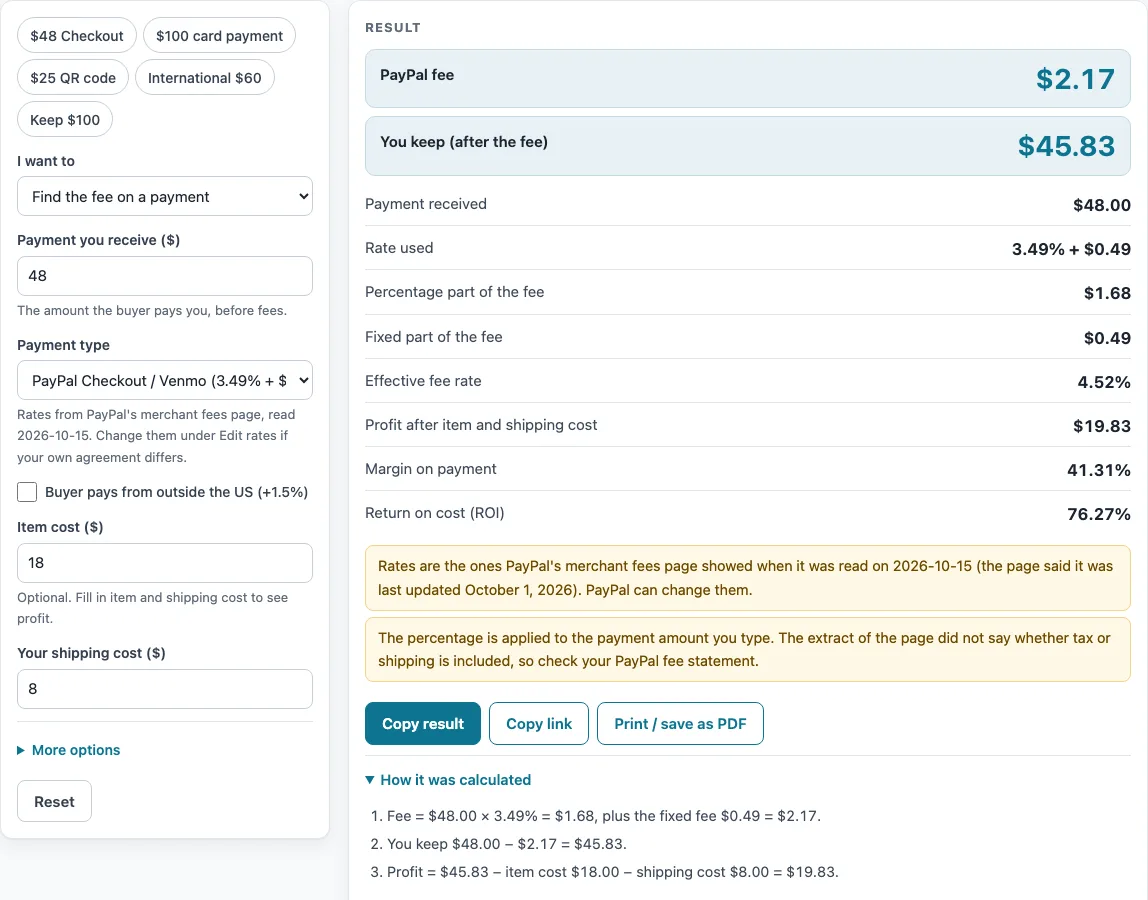
- Start from the defaults or pick a preset. The page opens on “Find the fee on a payment” with a $48 payment on Checkout, an item cost of $18 and a shipping cost of $8. The presets are listed below.
- Select the “Payment type”: Checkout (3.49% + $0.49), credit or debit card (2.99% + $0.49) or QR code (2.29% + $0.09).
- Tick “Buyer pays from outside the US (+1.5%)” if the payment is international. This adds 1.5 percentage points to the percentage.
- Type “Payment you receive ($)”. Read the fee, the amount you keep, the rate used, the percentage and fixed parts, and the effective fee rate.
- To work backwards, change “I want to” to “Find what to request to keep a set amount” and type “Amount you want to keep ($)”. The result is the smallest payment to request, to the cent.
- Optional: type “Item cost ($)” and “Your shipping cost ($)”. The page then shows profit, margin on the payment and return on cost.
- Optional: under “More options”, set “Number of payments” or enter a value in “Percentage fee override (%)” or “Fixed fee override ($)” to replace the table values. A warning shows that the result uses your numbers.
- Check the tax and shipping warning. The percentage is applied to the payment amount you type, and the source did not say whether tax or shipping is included, so check your PayPal fee statement.
The presets are $48 Checkout, $100 card payment, $25 QR code, International $60 and Keep $100. They fill in the fields so you can change one value at a time.
What does a PayPal fee calculation use?
The fee is the payment multiplied by the percentage, rounded to the cent, plus the fixed fee. The percentage is applied to the payment amount you type. Checkout uses 3.49% plus $0.49. Cards use 2.99% plus $0.49. QR code payments use 2.29% plus $0.09. The international box adds 1.5 percentage points to the percentage.
How is the fee worked out for a card or QR code payment?
Take the percentage of the payment, round it to the cent, then add the fixed fee. For a $100 card payment, 2.99% of $100 is $2.99, and adding $0.49 gives a fee of $3.48. For a $25 QR code payment, 2.29% of $25 is $0.57, and adding $0.09 gives a fee of $0.66.
How do you work out the payment to request to keep a set amount?
Keep mode uses the formula request = (amount + fixed fee) / (1 - rate), before rounding. The rate is the percentage written as a decimal. The result is then rounded so that the payment minus the fee is at least the amount you want to keep. For example, to keep $100 by Checkout, the request is $104.12, with a fee of $4.12. Requesting $104.11 would leave $99.99, which is one cent short.
Why do the total fees grow with the number of payments?
The fixed fee is charged on each payment, not once for a batch. So the total fixed fees equal the fixed fee multiplied by the number of payments. Ten QR code payments carry $0.90 in fixed fees before any percentage is added. That is why the page shows “Total fees, all payments” when you enter more than one payment.
How are profit and margin worked out?
The page shows profit as the amount you keep minus your item cost and shipping cost. With the defaults, a $48 Checkout payment carries a $2.17 fee, so you keep $45.83. Subtracting the $18 item cost and the $8 shipping cost leaves a profit of $19.83. The page also shows margin on the payment and return on cost, which are based on the same amounts.
What does the calculator leave out?
The calculator does not include Pay Later, currency conversion, friends and family, micropayment, or dispute and chargeback fees. If you type your own values in the override fields, the result uses them instead of the table values. The rate figures were read through a summarizer, so exact wording was not captured, and the 4.99% Pay Later, 4% and 3% currency conversion, and 2.90% friends and family figures were not used. PayPal can change its rates, so re-check the figures on its merchant fees page.
Sources (checked 16 October 2026): paypal.com
Worked examples
| Input | Result |
|---|---|
| payment of $48.00, PayPal Checkout / Venmo (3.49% + $0.49) | fee $2.17, you keep $45.83 |
| payment of $100.00, Credit or debit card (2.99% + $0.49) | fee $3.48, you keep $96.52 |
| keep $100.00, PayPal Checkout / Venmo (3.49% + $0.49) | request $104.12, fee $4.12, you keep $100.00 |
| payment of $25.00, QR code (2.29% + $0.09) | fee $0.66, you keep $24.34 |
| payment of $60.00, PayPal Checkout / Venmo (3.49% + $0.49) | fee $3.48, you keep $56.52 |
Calculated by the tool above; open it with the same values to see each step.
Frequently asked questions
Is this PayPal fee calculator free to use?
Yes. It runs in your browser, needs no sign-up, and nothing you type is uploaded.
Where do the rates come from?
The rates come from PayPal’s merchant fees page, last updated October 1, 2026, and read on 2026-10-15. The page was read through a summarizer, so check the current figures on PayPal’s own page.
What does the result show for a PayPal fee?
The result shows the fee on one payment, the amount you keep, the rate used, and the effective fee rate. It reflects the rates listed on the date shown.
Why might my real fee differ from the result?
PayPal can change its rates. Your result also depends on the payment type, the international box, and any override values you typed. Pay Later, currency conversion and dispute fees are not included.
Does the percentage include tax or shipping?
The percentage is applied to the payment amount you type. The source did not say whether tax or shipping is included, so check your PayPal fee statement.
Can I use my own fee rates?
Yes. Enter a value in “Percentage fee override (%)” or “Fixed fee override ($)”. The result then uses your numbers, and a warning says so.
What does keep mode tell me?
It gives the smallest payment you need to request, to the cent, so that the amount left after the fee is at least the amount you want to keep.
Related tools
- Marketplace Fee and Profit Calculators: use it to browse every fee and profit calculator on this site.
- Stripe Fee Calculator: use it to compare the fee on a card payment taken through Stripe.
- Shopify Fee Calculator: use it when you take payments through your own Shopify store and want the plan cost per order.
- Marketplace Fee Calculator: use it to see the same sale on several marketplaces, with PayPal in a separate payment services table.
- eBay Fee Calculator: use it to estimate eBay fees on a listing.
- eBay Profit Calculator: use it to estimate profit on an eBay sale after costs.
- Amazon Referral Fee Calculator: use it to estimate the referral fee on an Amazon sale.
- Mercari Fee Calculator: use it to estimate fees on a Mercari sale.
- Depop Fee Calculator: use it to see what Depop fees take from a sale.