Warning Label Generator
Type up to six lines, choose a label sheet size, and print labels at exact size on Letter paper, with a one-inch ruler check for print scaling.
Recent
Your last 10 settings, saved only in this browser. Nothing is uploaded.
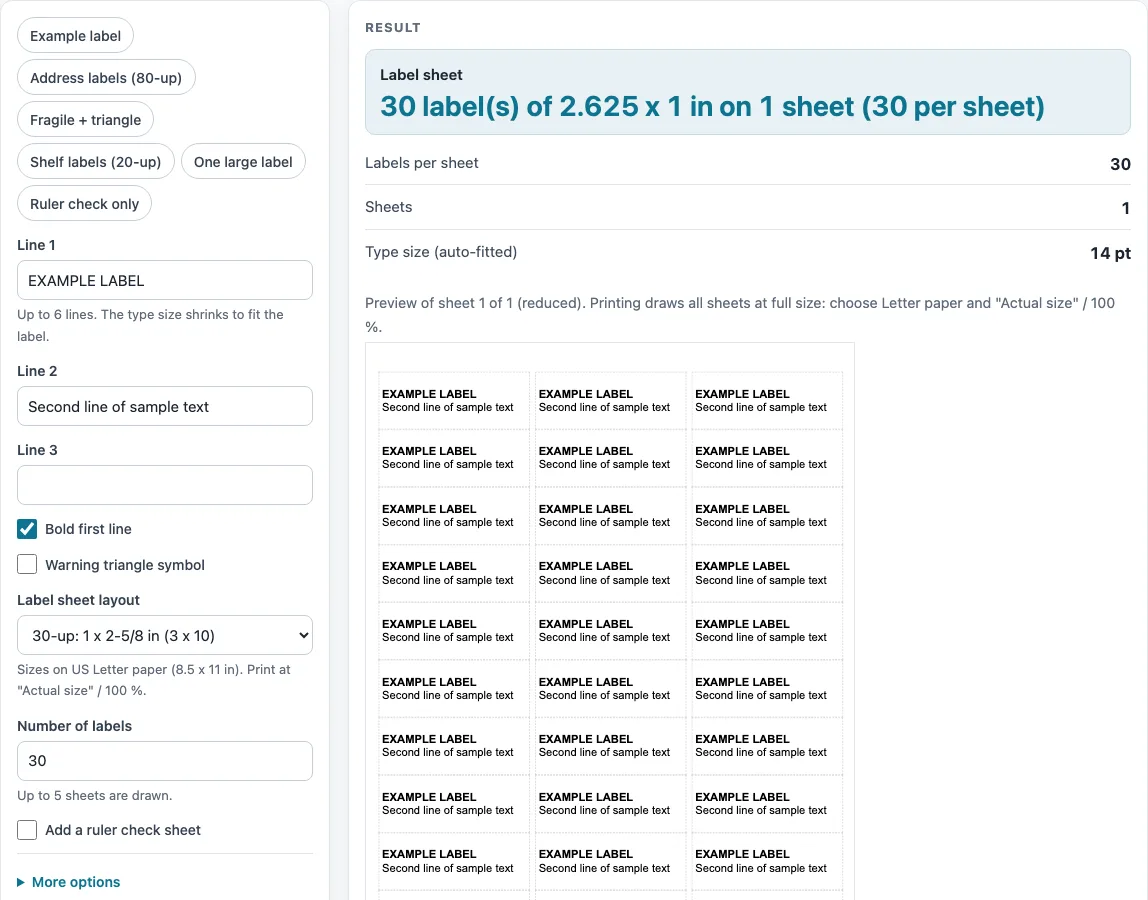
How to use the Warning Label Generator
- Type your text into “Line 1” to “Line 3”. For more lines, open More options and use “Line 4” to “Line 6”.
- Tick “Bold first line” if the first line should print in bold.
- Tick “Warning triangle symbol” to add an equilateral triangle with an exclamation point at the left, up to 0.5 in high. It is only a symbol, and no rule is applied.
- Tick “Border around each label” if you want a border on every label.
- Open “Label sheet layout” and pick a sheet. The default is 30-up with 30 labels. “Custom size and margins” opens the “Custom:” fields for label width, height, columns, rows, margins and gaps, all in inches.
- Set “Number of labels”. The maximum is 5 sheets.
- If a sheet is partly used, set “Skip the first positions”. Labels fill from left to right, then down.
- Tick “Add a ruler check sheet” to add a first page with a 1 inch square and a 4 inch line.
- Read “Type size (auto-fitted)” in the outputs. The size is chosen from 14 pt down to 5 pt, and one size is used for the whole sheet.
- Print. Each sheet prints on its own Letter page with no page margin. For the ruler check, print at Actual size / 100 % with no fit to page.
Presets are available for quick starts: Example label, Address labels (80-up), Fragile + triangle, Shelf labels (20-up), One large label, and Ruler check only. Choose a preset, then edit the lines to match your own text.
What does this warning label generator actually print?
It prints a sheet of labels with the lines you type placed on each one. It does not write warnings, check wording, or choose a message for you. The page contains no regulatory wording, so any rule wording comes from you. The tool is a layout step after you have decided the words.
How is the label sheet layout worked out?
Each layout uses a label size, a count, and margins taken from public label-maker template pages. The page says those figures were checked on 2026-10-16. Columns, rows, and the gaps between labels are calculated by this tool, which spreads labels evenly between the stated margins on 8.5 x 11 in paper. For example, the 30-up gap is 0.09275 in across and 0 in down. Real sheets may differ slightly from these numbers, so the gaps are an estimate, not a measurement of any particular product.
The template pages do not state a page size for the 20-, 10-, and 6-up sheets. US Letter (8.5 x 11 in) is assumed because those counts and margins only add up on Letter.
Why does the type size change?
The tool tests sizes from 14 pt down to 5 pt in 0.5 pt steps and uses the largest size at which all lines fit. One size applies to the whole sheet, so every label matches. Six short lines on a 30-up label print at 8.5 pt. Text width is estimated using an approximation for a sans-serif typeface, so the fit is a close guide rather than an exact preview of your printer’s output.
If the text still does not fit at 5 pt, a warning appears and the text is clipped. The fix is to shorten the lines or choose a larger label layout.
Why print a ruler check sheet before the real labels?
The ruler check page includes a 1 inch square and a 4 inch line. If they do not measure exactly 1 and 4 inches on paper, your printer is scaling the page. Print again at Actual size / 100 % with no fit to page, then check the measurements again.
What if I need a layout that is not on the list?
Choose “Custom size and margins” and enter the label width, height, columns, rows, margins, and gaps in inches. A custom layout that needs more than 8.5 x 11 in gives an error and states the size it needs. Use the measurements from your own label packaging or the label maker’s template, and test on plain paper before printing on the real stock.
Sources (checked 16 October 2026): worldlabel.com · avery.com · worldlabel.com · worldlabel.com · worldlabel.com · worldlabel.com · avery.com
Worked examples
| Input | Result |
|---|---|
| "EXAMPLE LABEL" on layout l30 | 30 label(s) of 2.625 x 1 in on 1 sheet (30 per sheet) |
| "Example Shop" on layout l80 | 80 label(s) of 1.75 x 0.5 in on 1 sheet (80 per sheet) |
| "FRAGILE" on layout l6 | 6 label(s) of 4 x 3.33 in on 1 sheet (6 per sheet) |
| "EXAMPLE LABEL" on layout custom | 12 label(s) of 3 x 1.5 in on 1 sheet (12 per sheet) |
Calculated by the tool above; open it with the same values to see each step.
Frequently asked questions
Is this warning label generator free?
Yes. The tool is free, needs no sign-up, and runs in your browser.
Is my text uploaded anywhere?
No. Everything runs in the browser, and nothing you type is uploaded.
Does the tool write a warning message for me?
No. It lays out the text you type. The page contains no regulatory wording, and the warning triangle is only a symbol with no rule applied.
Which layout should I pick?
Pick the layout that matches your label stock. If you are not sure, start with the default 30-up layout, or use a preset such as “Shelf labels (20-up)” and check the result on plain paper.
Why is my text clipped?
The tool tries sizes from 14 pt down to 5 pt. If the text still does not fit at 5 pt, a warning appears and the text is cut off. Shorten the lines or use a larger layout.
Why do the gaps not match my label sheet exactly?
The gaps are calculated by spreading labels evenly between the margins on 8.5 x 11 in paper. Real sheets may differ by a small amount, so print a test page on plain paper first.
How many sheets can I print at once?
“Number of labels” is capped at 5 sheets.
Related tools
- Warning and Tracking Labels: use when you want the overview of the label tools on this site.
- Choking Hazard Warning Label: use when you want one of the six choking hazard statements laid out with minimum type sizes.
- Choking Hazard Warning for Online Listings: use when you want the statement text for a product listing instead of a printed label.
- CPSIA Tracking Label Generator: use when you want to lay out tracking label text with numbered batch labels.
- Children’s Product Certificate Generator: use when you want to lay out a children’s product certificate sheet.
- ASTM F963 Checklist: use when you want a worksheet of the topic headings CPSC lists for toy safety.