Depop Fee Calculator
Type the price, shipping and your costs. You get the Depop payment processing fee, an optional boosting fee, your payout and your profit. Rates are editable.
Recent
Your last 10 settings, saved only in this browser. Nothing is uploaded.
The depop fee calculator works out the Depop fees on one sale and shows your profit after your item cost and your shipping cost. Enter the item price, the shipping the buyer pays, your postage, and what the item cost you. The tool runs in your browser, is free, needs no sign-up, and does not upload anything.
Results are calculated from your inputs and the rates published on the platform’s pages on the date shown. The processing and boosting rates come from a search-result extract of Depop’s help page, not from reading the full page, so check Depop’s own page before you rely on them. If you are looking up depop fees for a planned listing, this page shows how each figure is worked out.
How to use the Depop Fee Calculator
- Type the price the buyer pays for the item in “Item price ($)”. Leave out shipping.
- Type the amount the buyer pays for postage in “Shipping the buyer pays ($)”. Enter 0 if you do not charge shipping.
- Type what your postage costs you in “Your shipping cost ($)”.
- Type what you paid for the item in “Item cost ($)”.
- Open More options if you need them. Fill in “Sales tax collected ($)”, “Other costs per order ($)”, and “Number of orders”.
- Check the rates. “Selling fee (%)” is pre-filled with 0. “Processing fee (%)” is set to 3.3, “Processing fee, fixed ($)” to 0.45, and “Boosting fee (%)” to 0. The processing and boosting figures come from a search-result extract of Depop’s help page, so change a rate whenever you have checked a newer one on Depop’s own page.
- Read the results. “Profit per order” and “Platform pays out” appear first. Check “Total fees”, “Margin on sale”, and “Break-even price” to see how the sale holds up.
- Look at “Profit for all orders” if you have more than one order of the same item.
You can also use the presets “$40 item”, “$25 top”, “Boosted 8%”, “Boosted 12%”, and “$90 with sales tax”. Each one fills the fields with a sample sale, so you can change the numbers from there. Rates change, so treat every result as an estimate.
How are Depop fees calculated?
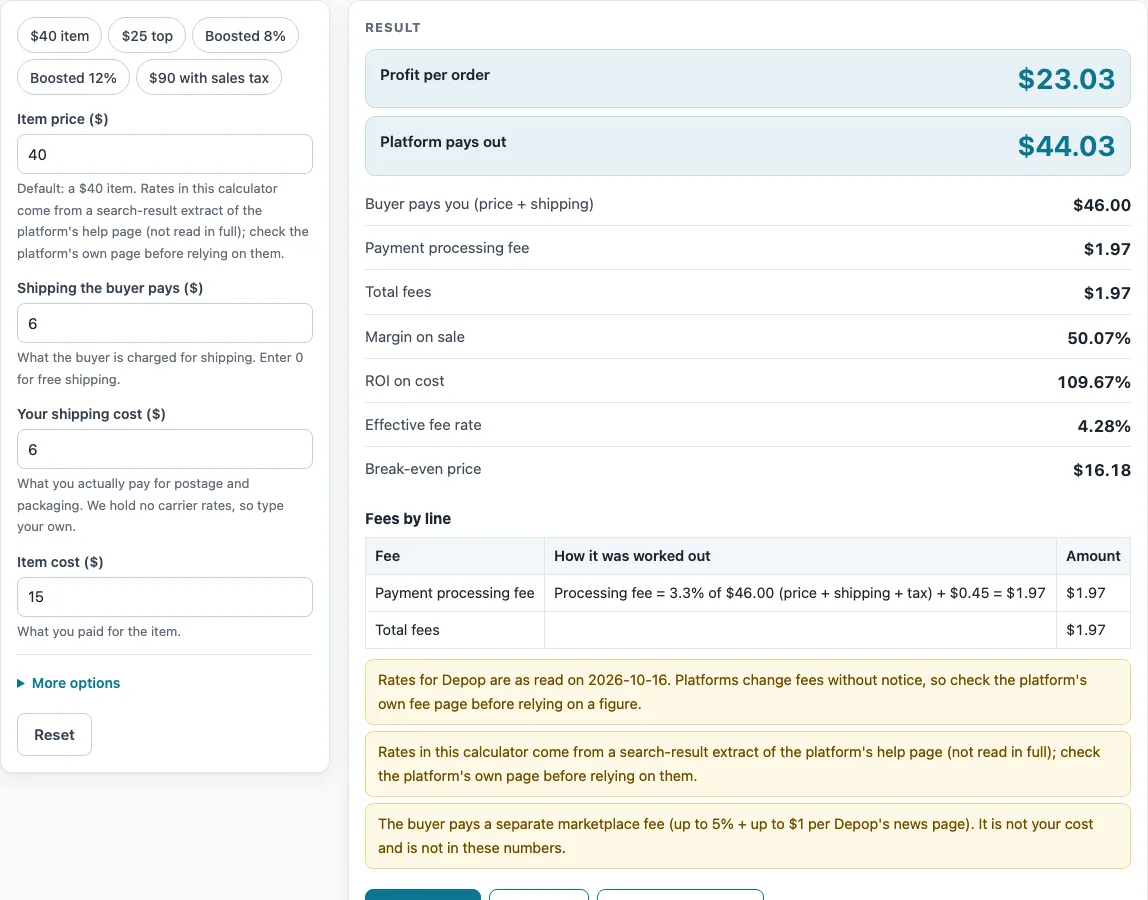
The tool adds the item price and the shipping the buyer pays together, then works out the fees from that total. The processing fee is charged on this amount plus any sales tax you enter. The platform’s payout is the buyer’s total minus the fees, and your profit is that payout minus your item cost and your shipping cost.
The selling fee comes from Depop’s news page, which says the US selling fee was removed in July 2024. For that reason the “Selling fee (%)” box is pre-filled with 0%. If you type a percentage there, the tool charges it on item price plus shipping. That base is an assumption the tool makes.
The payment processing fee of 3.3% plus $0.45 comes from the help-page extract, which was not read in full. Check the platform’s own page before you rely on it. The formula is:
- Processing fee = (price + shipping + sales tax) × 3.3% + $0.45
- Platform pays out = price + shipping − fees
- Profit = platform pays out − item cost − your shipping cost
- Margin on sale = profit ÷ (price + shipping)
With the default inputs, a $40 item and $6 shipping give a processing fee of 46.00 × 3.3% + 0.45 = $1.97. The payout is $44.03, the profit is $23.03, and the margin is 50.07%.
The “Break-even price” is the item price at which profit reaches zero, with every other input unchanged. With the defaults, it is $16.18.
How do boosting and sales tax change your profit?
Boosting adds a fee that applies only if the item sells. The extract shows 8% or 12%, but the tool cannot tell which one applies to you, so you type the rate into “Boosting fee (%)”. It defaults to 0. The tool charges the boost on item price plus shipping.
Using the defaults with an 8% boost adds $3.68 (8% of $46.00). Total fees become $5.65, and profit falls to $19.35.
Sales tax collected is added to the processing fee base, but it is not counted as revenue or as part of the payout. Here is a worked example: a $90 item with no shipping charged, $9 postage, a $30 cost, $7.20 sales tax, and a 12% boost. The processing fee is $3.66, the boost is $10.80, total fees are $14.46, the payout is $75.54, and profit is $36.54.
Sources (checked 16 October 2026): news.depop.com · depop.com
Worked examples
| Input | Result |
|---|---|
| Depop: item price $40.00, item cost $15.00 | Fees $1.97, payout $44.03, profit $23.03 (50.07% margin) |
| Depop: item price $25.00, item cost $6.00 | Fees $1.44, payout $28.56, profit $17.56 (58.53% margin) |
| Depop: item price $40.00, item cost $15.00 | Fees $5.65, payout $40.35, profit $19.35 (42.07% margin) |
| Depop: item price $90.00, item cost $30.00 | Fees $14.46, payout $75.54, profit $36.54 (40.6% margin) |
Calculated by the tool above; open it with the same values to see each step.
Frequently asked questions
What rate does the calculator use for payment processing?
The tool uses 3.3% plus $0.45. This comes from a search-result extract of Depop’s help page, which was not read in full, and the rates were read on 2026-10-16. Rates change, so check Depop’s own page before you rely on the figure.
Does Depop charge a selling fee in the US?
Depop’s news page says the US selling fee was removed in July 2024. The “Selling fee (%)” box is therefore pre-filled with 0%.
Are boosting fees included automatically?
No. Boosting fees apply only if the item sells, and the extract lists 8% or 12%. Type the rate you expect into “Boosting fee (%)”. It defaults to 0.
Does sales tax count as money I receive?
No. Sales tax collected is added to the processing fee base but is not counted as revenue or payout.
Does the calculator include the buyer’s own marketplace fees?
No. Depop’s news page describes a buyer marketplace fee of up to 5% plus up to $1, paid by the buyer. It is not a seller cost, so it is not included in these results.
Why does the calculator show a warning?
Warnings appear when rates may have changed since they were read, when a sale results in a loss, or when total fees are above 40%. Check the rates on the platform’s page if a warning appears.
Related tools
- Marketplace Fee and Profit Calculators: use when you want every fee calculator on this site in one list.
- Poshmark Fee Calculator: use when you also sell on Poshmark.
- Mercari Fee Calculator: use when you also sell on Mercari and want to see its fees on the same item.
- Whatnot Fee Calculator: use when you also sell on Whatnot.
- Selling Price Calculator: use when you know the profit you want and need the price to list at.
- Marketplace Fee Calculator: use when you want to compare fees across several marketplaces.
- eBay Fee Calculator: use when you want to estimate eBay fees on a sale.
- eBay Shipping Calculator: use when you want to work out shipping costs for an eBay order.